
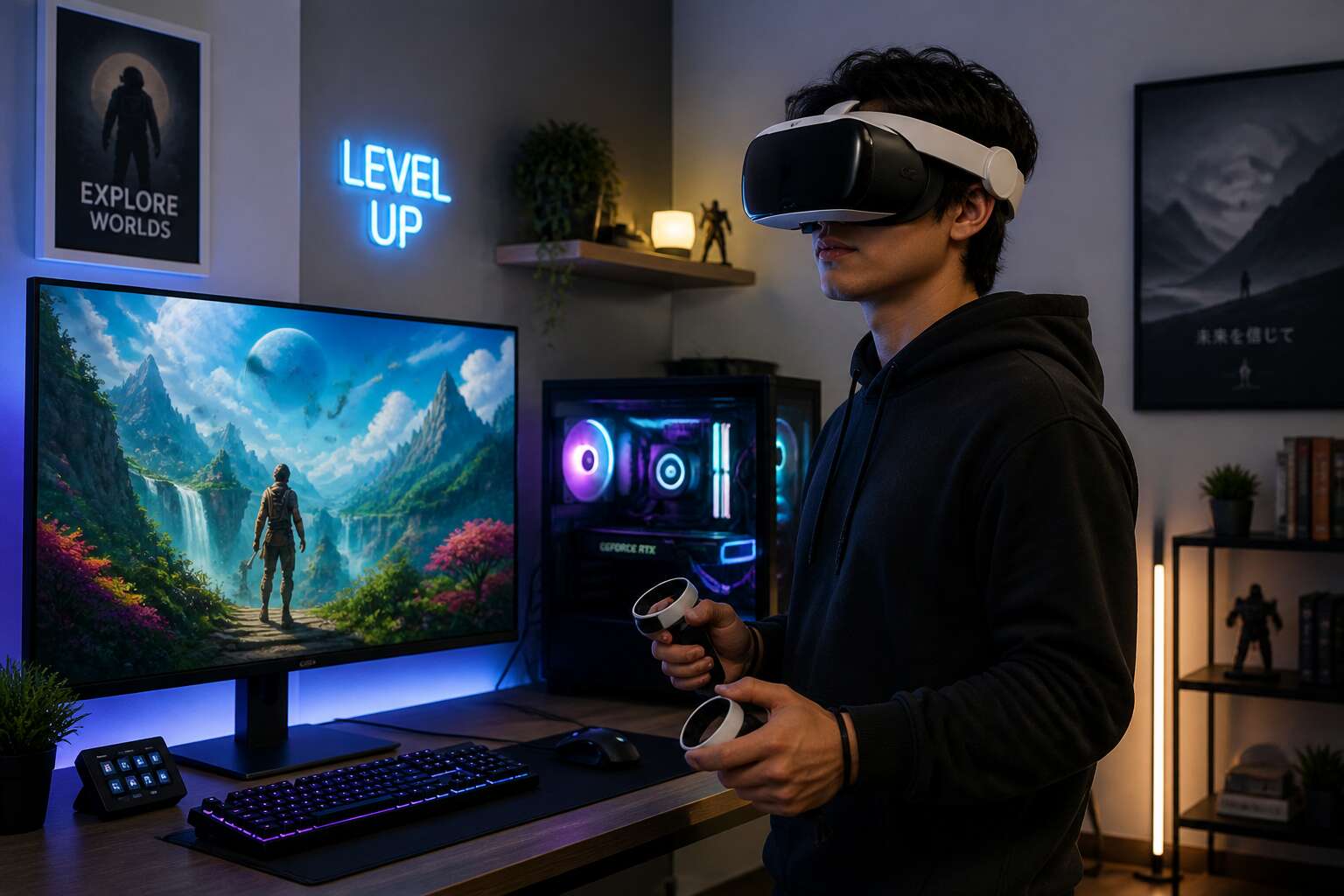
Understanding VR System Requirements
Minimum vs Recommended Specs
Approximately 25% of new virtual reality owners report discomfort in their first week. That statistic often stems from a misunderstanding of the computational threshold required for smooth immersion. The distinction between minimum and recommended specifications is not a matter of graphical fidelity alone; it is the line between a fleeting glimpse of a digital world and living inside it.
Meeting the minimum spec for a vr headset and pc means the hardware can render the scene. You will see the world, but it may feel hollow, with textures popping in and the frame rate struggling to maintain a stable rhythm. This instability is the primary culprit for the nausea many newcomers experience. It is a functional, yet fragile, existence.
To truly inhabit the space, your rig should comfortably exceed the baseline. The recommended tier allows the software to breathe. Here are the critical areas where the gap between tiers widens significantly:
- Graphics processing, where the shader complexity and particle effects reach their full potential.
- Central processing, which handles the physics simulations and background logic without stuttering.
- Memory bandwidth, ensuring assets load instantly as you turn your head.
Reaching that higher tier requires a financial commitment. For South African users, the cost of these components is often amplified by import duties and a volatile exchange rate. This reality makes the research phase crucial. You must decide whether you are purchasing a glimpse or a sustained presence. The choice dictates whether the magic holds up under the weight of your expectations.
Graphics Card Benchmarks
The graphics card benchmark is the only honest measure in this hardware market. For a vr headset and pc, the GPU is not a luxury. It dictates the fluidity between your movements and the rendered world. A misstep in this calculation costs more than money. It costs your equilibrium.
Consider what the numbers actually measure:
- Frame time consistency, or the steadiness of your visual field.
- Shader complexity, the density of effects the card can resolve.
- Vertex throughput, which governs geometry detail before your eyes.
In South Africa, where import duties inflate every price, a benchmark result becomes a survival tool. I have seen users purchase a card based on desktop gaming scores alone, only to find it collapses under the stereo rendering load of a vr headset and pc system. The variance between 2D and VR scores is brutal. Trust the VR-specific tests. They expose what the hype hides!
Processor and RAM Considerations
Every vr headset and pc hides a quiet dependency on its processor and memory. The graphics card receives the applause, but your CPU performs the essential work of positional tracking and physics simulation.
Consider these three thresholds when pairing components:
- Single core speed, not core count alone, determines tracking responsiveness.
- At least 16GB of RAM prevents scene streaming stutter.
- Memory bandwidth above 3200MHz helps maintain frame pacing.
I have seen South African builds fail not on the GPU, but on a dated processor that bottlenecks everything else. Treat your CPU and RAM as equal partners to the graphics card; neglect one, and the illusion fractures.
Choosing the Right Headset for Your Computer
PC VR vs Standalone Devices
Every VR headset promises escape. The reality is that the experience depends on where the processing happens. A standalone unit carries its own silicon and thermal limits. A vr headset and pc pairing splits the work between your desktop and the headset. That affects latency and visual depth. South African gamers facing loadshedding may prefer a battery-powered device. But there is a trade-off:
- Standalone sets trade graphical headroom for instant, cable-free sessions.
- PC-tethered headsets unlock higher frame rates and richer worlds when your tower can keep up.
I have tested both routes extensively. The consistency of a vr headset and pc connection wins on immersion, yet the convenience of self-contained hardware is hard to ignore. Your choice comes down to what matters more on any given evening!
Tracking Technology Explained
Tracking technology is the quiet factor in every VR session. It decides whether the virtual world holds its position or slips. Get it right, and the vr headset and pc pairing responds instantly.
Inside-out tracking uses cameras on the headset to map your room. It saves you from mounting base stations, especially in rented South African homes. Outside-in tracking, with laser-emitting stations, delivers sub-millimetre accuracy. One approach is not universally better. The choice depends on your play space and the USB bandwidth your motherboard can spare.
Specifics to weigh:
- The camera or sensor count on the headset.
- The number of USB 3.0 ports your PC can spare.
- The size of your play area.
- The refresh rate, since higher rates reduce motion smear.
I have seen inside-out systems drift on dark walls and base stations fail when a cable wobbles. Both routes can frustrate when your vr headset and pc are not properly matched.
Display Resolution and Refresh Rate
Every pixel your headset cannot render is a pixel your stomach will feel. Refresh rate is the contract between the panel and your GPU. A 90 Hz floor keeps motion credible, but 120 Hz gives the vr headset and pc combo useful headroom. Higher resolution is a demand letter served to your graphics card, which must render each frame twice. The display only shows what the PC can afford.
South African users often overestimate their rigs. A 4K headset plugged into a mid-range GPU produces a blurry mess. A 144 Hz panel on a weak card produces motion artefacts.
Match these variables:
– Native resolution versus GPU output.
– Cable bandwidth, DisplayPort 1.4 or HDMI 2.1.
– Sustained refresh rate without reprojection.
The balance point between clarity and fluidity is where the vr headset and pc partnership succeeds. Start there, not with the marketing brochure.
Comfort and Ergonomics
Every headset promises immersion, but your neck and nose will negotiate the real terms. South African heat turns a stiff foam face pad into a sponge you paid for. The best vr headset and pc combo fails if you cannot tolerate the weight after twenty minutes.
Comfort is the spec sheet nobody shows you. Halo straps distribute load better than elastic bands. Replaceable cushions matter more than RGB accents. A headset that slips when you sweat is a headset you will abandon.
- Check the total weight, above 500 grams grows heavy fast.
- Find adjustable IPD or your eyes will fight the lenses.
- Look for ventilation channels in the nose guard.
Your vr headset and pc investment belongs on your head, not the shelf. Match the hardware to the shape of your skull, the humidity of your room, and the patience of your spine.
Ecosystem and Software Compatibility
Ecosystem determines whether your purchase ages gracefully or becomes a paperweight. Each headset routes through a software layer. A vr headset and pc setup works best when the storefront and runtime align. Mismatched platforms create latency, compatibility faults, and wasted time.
Check the compatibility matrix before you buy. SteamVR covers most devices. Exclusive titles do not transfer.
- Which launcher owns your purchased games?
- Does the headset require proprietary drivers?
- Is sideloading restricted by the manufacturer?
A cheap vr headset and pc pairing fails when the software walls close. Local support matters. A faulty update in Johannesburg takes longer to fix than a fault caught overseas.
Setting Up Your Desktop for Virtual Reality
Installing VR Software and Drivers
Over half of virtual reality returns happen within the first week, and most stem from a setup process that goes wrong before the headset ever displays an image. Begin with the physical layer. Move your tower so the front facing sensors and USB ports are accessible, and map out floor space without clutter.
Software installation requires a specific order. Install the launcher, update your operating system, and update your graphics card drivers before you connect the headset. I have seen users plug in the vr headset and pc too early, triggering driver conflicts that take hours to untangle. Allow the installer to restart your machine. Some headsets also require a companion app that runs in the background.
After installation, reboot a second time and test the display and microphones. That final pass takes ten minutes.
Configuring Play Space and Sensors
Setting up your play space is where many people lose time. You might have a strong vr headset and pc setup, but a cramped room will ruin the experience. Start by removing loose furniture and reflective surfaces. They confuse the sensors!
For sensor placement, I always think about height. Cameras placed low tend to lose tracking near the floor. Position them at chest level or higher, angled downward. Mark a boundary that leaves arms-length clearance on every side.
- Verify the floor is level
- Confirm the play area is at least two meters square
- Check that cables reach without strain
Finally, run the room setup tool. Walk slowly along the boundary. The system records the exact geometry. That extra minute prevents frustration later.
Connecting Multiple Monitors
A desktop bound to a single monitor can feel almost hermetic once you add a vr headset and pc. The headset demands a portion of your GPU’s output, so connecting additional displays requires a deliberate sequence.
Multiple monitors create three separate concerns before a session begins:
- Bandwidth allocation across the GPU output ports
- Display identification within the operating system
- Refresh rate negotiation between the headset and each screen
I always set the primary monitor to the highest refresh rate, then run the VR headset from a separate DisplayPort. Mixing HDMI and VGA often convulses the handshake. For those juggling three screens, consider the port bandwidth before the session begins. The system’s display settings must extend the desktop rather than clone it, allowing Windows to allocate resources correctly. Your play space becomes a quiet manifestation of that arrangement.
Optimizing Power Settings and USB Ports
In South Africa, load shedding can interrupt your play session before you even start, but the operating system’s power plan may be the more consistent culprit. Windows defaults to a balanced profile that throttles CPU and USB voltage during idle moments. That works for email, yet it undermines a vr headset and pc setup.
I open the advanced power options and disable USB selective suspend. This prevents the root hub from sleeping mid-session. I also set the PCIe link state to Off, because the headset’s positional data relies on stable bus timing.
- Set the power plan to High Performance
- Disable USB selective suspend
- Set PCIe link state to Off
The power supply unit must handle transient spikes from the GPU. Insufficient headroom manifests as random tracking jumps, which users often misdiagnose as sensor issues.
Maximizing Performance on Your PC
Graphics Settings Tuning
Every virtual scene begins with the graphics panel. For a vr headset and pc, this menu decides whether you see a world or a collection of artifacts. I disable motion blur and chromatic aberration first. They add nothing and cost frames. Then I lower render resolution to 90 percent. The optics hide the compromise.
Adjust three variables: texture quality, anti-aliasing, and shadows. Set them high, medium, and low! Cap the frame rate to your display’s refresh. The GPU stops wasting effort on invisible frames. That tuning is the quiet craft of immersion.
Supersampling and Render Resolution
A 4K render at 90Hz demands 746 million pixels per second. Your vr headset and pc must handle that load without stuttering. Supersampling is the opposite of compromise. It renders the scene above the display’s native resolution, then shrinks the image down.
Render resolution is the dial you turn. At 100 percent, you push the exact pixel count. At 150 percent, you push the GPU harder. Some titles offer a dynamic resolution slider. That is a safety net, not a fix, because it scales on the fly and introduces micro-stutter. The difference is often subtle, but the frame time graph will tell you the truth.
- Start at 120 percent for the baseline.
- Drop to 100 percent if the frame time spikes.
- Go to 80 percent only for legacy hardware.
The key is to measure the actual frame time in milliseconds, not the FPS counter. I have seen a steady 11ms beat a spiking 8ms.
Managing Background Processes
Background processes reduce performance. They hide in the system tray, waiting for attention. A vr headset and pc needs every processor cycle for rendering. I always open Task Manager and sort by CPU usage. You will see browsers, updaters, and chat apps using resources. Close them before launching anything. Disable startup items that serve no purpose. Windows runs background services, but many can wait.
- Check for memory-heavy apps like Chrome or Discord.
- Pause cloud sync tools such as OneDrive.
- End game launchers after the game is running.
One background app can add 3 milliseconds to frame time. That is the difference between smooth motion and motion sickness. The vr headset and pc system works best when the operating system stays quiet. Keep your desktop clean!
Upgrading Your GPU and Storage
Most VR stutter comes from storage, not the GPU. Your vr headset and pc setup renders worlds, but a slow drive makes textures pop in mid-scene. Upgrading the GPU is the loud fix. The quiet win is replacing an old mechanical drive with an NVMe SSD.
VR scenes stream assets constantly. A drive that stumbles adds stutter you cannot unsee. For loading times and smooth transitions, the storage choice matters more than raw capacity. Consider the hierarchy:
- SATA SSD: a solid step up from hard drives.
- NVMe SSD: the best choice for VR.
- PCIe 5.0 drives: future proofing, not necessity.
Pair the new storage with a GPU that has enough VRAM. That combination keeps the vr headset and pc pipeline full.
Troubleshooting Common PC-VR Connectivity Issues
Headset Not Detected by PC
The moment your vr headset and pc refuse to acknowledge each other, the experience stalls before it begins. A headset that remains undetected often comes down to something deceptively simple: the cable seating, the port selection, or the USB controller’s bandwidth allocation. Many South African setups run multiple peripherals through a single hub, which starves the headset of the handshake it needs.
Check the headset’s status light. If it glows but the software shows nothing, the data line is the culprit. Try every USB port directly on the motherboard, avoiding front panel connectors. Also confirm the graphics card driver is not silently overriding the headset’s display handshake.
- Inspect the cable for bent pins
- Reboot the PC with the headset plugged in
- Disable USB power saving in Device Manager
Finally, remember that a vr headset and pc connection degrades over time. Dust, worn ports, and driver rollbacks all mimic a hardware failure when the hardware is fine.
Fixing Display and Audio Artifacts
Once your vr headset and pc finally establish a stable connection, new issues appear in the rendering pipeline. Display artifacts often show as shimmering speckles or a wobbling horizon. Audio artifacts creep in as crackles or a lagging spatial echo. These are not always hardware failures. A stray overclock on the GPU can destabilize frame pacing. An outdated USB audio driver can garble positional cues. Check the refresh rate negotiation between the vr headset and pc first. Then inspect the cable’s bandwidth rating, as a damaged DisplayPort or HDMI run will corrupt packets silently.
For persistent issues, reset the headset’s firmware and clear the software cache. Also disable any third party equalizer that might fight the VR audio stack. Keep the headset firmware current, as manufacturers ship fixes for known artifact triggers. The system usually stabilises once the signal path is clean.
Reducing Motion Sickness with Frame Rate
Motion sickness in VR rarely comes from a single frame drop. It builds when the brain notices a mismatch between what the eyes see and what the inner ear feels. A vr headset and pc that exchange data unevenly will produce exactly this mismatch. Dropped frames, micro stutters, or a fluctuating render time all tell your balance system that something is wrong.
When the connection between the vr headset and pc falters, the display can hold a frame too long or skip one entirely. The result is a subtle judder that many users interpret as fatigue. Your body is not fooled. It responds with nausea.
Frame rate consistency matters more than peak performance. A steady 90 frames per second feels comfortable, while a system that swings between 120 and 60 will leave you queasy. For most setups, this means keeping the USB and video paths stable before worrying about graphical fidelity.
USB and Cable Management
One loose USB cable can sabotage an entire evening. I have seen a flawless setup drop to a black screen because a connector shifted two millimetres. Intermittent shutoffs are rarely software faults. They are physical failures.
Check the link before you blame drivers. Reseat the connector until it clicks. Inspect the shielding for kinks and cuts. Replace any cable that feels warm to the touch. Common culprits include:
- Damaged shielding
- Loose connectors
- Underpowered hubs
Run the shortest possible path from tower to headset. A powered hub with its own adapter stabilises voltage over longer distances. Keep spare cables coiled, not folded. Folds create micro-tears that show up as random stutters in your vr headset and pc link.
Updating Firmware and Drivers
When the vr headset and pc refuse to speak the same language, the fault often hides in the firmware, that silent intermediary between silicon and sense. A driver updated months ago can drift into dissonance, especially after a Windows update reshuffles the system’s bones. Check the headset’s own firmware first, then the graphics suite, then the USB controller. Each layer holds its own ghost.
- Update firmware using the manufacturer’s standalone tool, not the bloated companion app.
- Clean install drivers with Display Driver Uninstaller in safe mode.
- Verify the headset’s cable and port using a known-good device.
Connectivity issues often mimic hardware failure. Restart the machine with the headset unplugged, then let it boot fully before plugging in. Watch for Windows chimes that lack their usual clarity. If the connection drops during intense scenes, the culprit is thermal, not logical.

0 Comments