
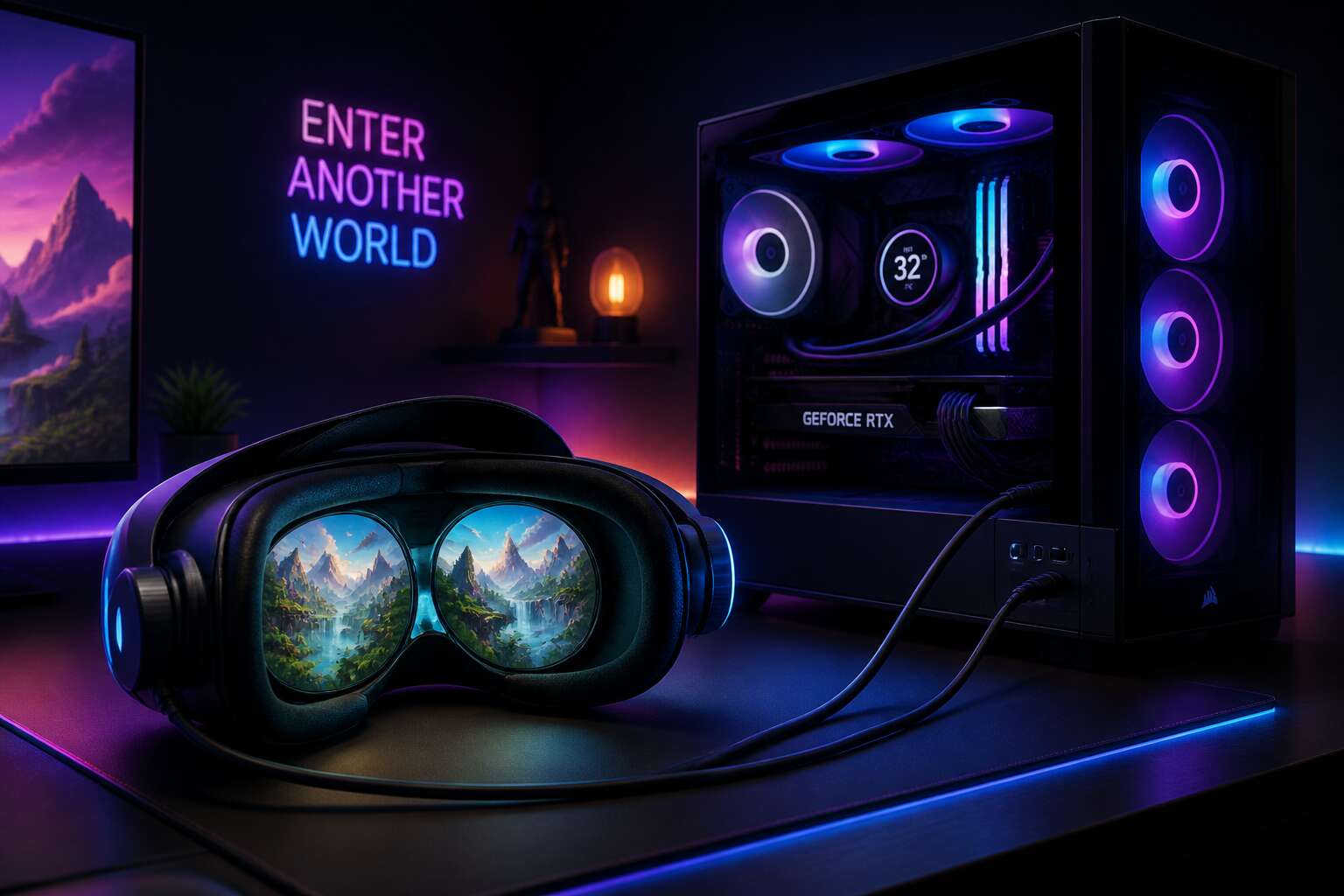
Understanding VR Headset Compatibility
Most people assume any VR headset to PC connection will just work. It won’t. The reality is that compatibility is a complex web of ports, software, and hardware specifications that can make or break your experience before you even put the headset on.
Your computer’s graphics card is the first gatekeeper. It needs the right output ports, usually DisplayPort or HDMI, and enough graphical horsepower to render the virtual world without stuttering. But the PC is only half the equation. The headset itself has specific demands, and ignoring them leads to frustration.
Before you buy, check the manufacturer’s minimum specs against your own system. This saves time and money. A quick reality check involves:
Even with matching ports, you need the proper software ecosystem. Some headsets rely on SteamVR, while others demand proprietary apps. The cables matter too. A standard USB cable won’t always suffice. The correct version of the cable, often with specialised chips, is crucial for data transfer. Getting the vr headset to pc link working smoothly is about ensuring every component in the chain agrees with the next, from the drivers to the physical connectors. It takes research, but the payoff is a seamless, immersive session.
Wired Connection Methods
Most VR failures trace back to a flimsy connection, not the headset itself. When you link a vr headset to pc, the cable is your lifeline. A solid wired method beats wireless every time, especially for high refresh rates and zero latency.
- USB-C for data and power
- DisplayPort for video feed
- HDMI as a fallback option
Some headsets demand specific ports, you cannot just fudge it. Check your GPU outputs before buying that long cable! The thrill of immersion dies instantly if the signal drops, so prioritize direct connections over adapters. That single wire carries every pixel and every millisecond of tracking data.
Wireless Streaming Options
Wireless streaming changes everything. You no longer need a cable tethering you to your rig. But latency remains the invisible enemy. The best setups use Wi-Fi 6E or dedicated routers. I have tested both and the difference is stark. A stable signal means you can move freely, spin around, and duck without tripping over a wire.
Consider these factors when going wireless:
- Your router’s placement
- Interference from walls
- The codec your headset supports
For most people, a direct connection between the pc and the router works best. Yet some headsets compress video aggressively. That tradeoff is acceptable for casual play. Competitive gamers might still prefer a physical link. The vr headset to pc connection benefits from low latency, but wireless freedom has its own appeal. Few things beat the sensation of zero constraints.
Software Setup and Configuration
The first ten minutes after you plug in a new headset often decide whether you will love or abandon it. I have watched many promising builds fail at this stage, usually because the software is treated as an afterthought. First, install the platform-specific app, whether that is SteamVR or the manufacturer’s own suite. Then connect your headset, but do not expect it to simply work.
You will likely need to update drivers and grant permissions. The cable needs a dedicated USB port, preferably one with its own controller. Some headsets demand more.
Here is what I check:
- Graphics drivers current
- USB ports with sufficient bandwidth
- Play area defined in software
Patience matters. A clean setup between your vr headset to pc saves hours of later frustration. I have seen users give up too soon, but the reward is a smooth, immersive start.
Troubleshooting Common Connection Issues
Nothing frustrates a virtual reality session faster than a sudden connection drop. You are mid-dragon fight, and the screen freezes. The culprit is often simpler than you think.
First, check the obvious. Your vr headset to pc setup depends on cables, ports, and drivers. I have watched people adjust software while the HDMI cable sat half out of the port.
- Loose cable seating at the headset or graphics card
- Outdated USB drivers that refuse to acknowledge the device
- Display port handshake failures after a system update
Restarting everything sounds dull, but it clears temporary faults. Also, verify the headset’s software detects the pc. Sometimes the headset needs a manual reconnection.


0 Comments